Featured Post -

News 1
News 2
News 3
News 4


Showing posts with label Android. Show all posts

Ex-Googlers Launch Avocado, An App For Couples Backed By Baseline, General Catalyst, And Lightspeed

Wednesday, June 20, 2012 0 comments


There’s a growing market for mobile apps designed to help couples stay closer. The phenomenon first came to my attention with thelaunch of Pair at Y Combinator’s most recent demo day. But since then, I’ve seen a whole bunch of new apps popping up, all seeking to offer up a tight little social network for two. The latest such app to launch is Avocado, which was created by a couple of former Googlers looking for a way to get closer and better organize their life together.
Avocado, available on the iPhone and Android mobile devices for $1.99, was created by ex-Google employees Chris Wetherell and Jenna Bilotta, who first met while working on Google Reader during their 20 percent time at the search giant. Key to the app is the user experience, which is designed to mimic the way that couples actually interact with each other.
It allows couples to create to-do lists and cross items off, upload pictures to share with one another, and send private messages to each other. It also lets users create and send “quick notes” to one another, over and over again, as well as “quick faces,” which swap out common emoticons for unique facial expressions of each partner.
The app is named as such because avocado trees, Wetherell tells me, only bear fruit when they grow near each other. Avocados also grow in pairs. Oh, also because “avocado” was the name of one of his computers while he worked at Google.
The Avocado team tries to differentiate itself with identity verification and advanced encryption, to ensure that users are who they say they are when they sign up. Couples have to provide a shared password to connect with one another, which is designed to keep impersonators from logging in and pretending to be someone that they’re not.
Not only are Wetherell and Bilotta founders, of course, but they’re also users — and the app has helped them get through the process of a major house renovation. Nowadays they conveniently use the app to create and manage bug reports.
The two tell me that work on the app began before the influx of social apps for couples really took hold, and the two have been a little surprised by how quickly competition has sprung up — particularly since all the major couples apps have emerged over just the last six months or so. But Wetherell said that the move to more intimate applications is only natural, as maturing platforms like Facebook and Twitter lack functionality to provide real private sharing.
To prepare for that competition in the nascent couples app space, the two closed a $1.3 million round of seed funding earlier this year, which included participation from Baseline Ventures, General Catalyst, Lightspeed Ventures, FeedBurner founder Steve Olechowski, and TV director Greg Yaitanes. The team has already hired a couple of developers, but they’re looking to hire a few more.


Install and Play Counter-Strike on your Android Device

Wednesday, February 8, 2012 0 comments


It is the mobile version of Counter Strike 1.6 powered by Unity 3D. More than 600 players online! Also you can play web version using your browser. Made by russian 4pda community 
5o version works on Android 2.0+ (but not ICS), ARMv6+, GL 1.0+
6p version works on Android 2.3+, ARMv7, GL 1.0+

FAQ

Q: Are there any bots?
A: Yes, but only in 5o version. (map singleplayer)

В: How can I jump?
О: You can’t jump on the 5o version, but you can jump in 6u version.

В: Is it possoble to play on ARMv6 devices?
О: Yes, but you would have problems with graphics. (only in 5o version)

Download:

Dev’s team:
Developer: FrIuNs
Dev’s helper: TiP@H

Google Adds A New Security Layer To The Android Market… A “Bouncer,” If You Will ask me.

Friday, February 3, 2012 0 comments


Android malware has been an issue over the past year. Granted, most of the numbers we see out of security software companies are inflated — including malicious apps from third-party sources and ignoring small download figures — but that’s not to say that we can just brush that dirt off our shoulders.
Google knows this, and has for a while. Despite the fact that downloads of malicious apps are down 40 percent between the first and second half of 2011, seeing that 14,000, 30,000, or even 260,000 devices have been affected by this or that malicious app requires action. That said, Google is adding a new security layer to the Android Market: codenamed Bouncer.
Originally, the Android market implemented three different methods for ridding the market of malware: sandboxing, permissions, and malware removal. Sandboxing keeps one app from infiltrating another, with one very important exception: permissions. Google sees its permissions system as a layer of security in and of itself, but permissions can actually be seen as a vulnerability. In some cases, the reasons behind the permissions a developer asks for aren’t immediately obvious to the user, and it can be tough to check everything, especially to the novice user.
Past that, Google’s always been good about removing malware from the market as soon as the company becomes aware of it, and in some cases, has even remotely wiped affected devices of malicious apps. The tool is a useful one to say the least, but it’s not enough.
Bouncer adds another level of security to the platform, automatically scanning new and existing apps for known bits of malicious code. Google has actually been scanning apps whenever new malicious code is discovered, but Bouncer will automate the process, scanning for known spyware and trojans, too. Bouncer runs every new application on Google’s cloud infrastructure and simulates how it’ll run on a device. That way, Google can see straight away whether an app is misbehaving and flag it accordingly.
Another smart feature is that Bouncer isn’t 100 percent automated. Once something is flagged, there’s a manual process for confirming the app is indeed malicious, reducing the risk of false positives.
To be quite honest, the Android platform is way more secure than most people think. I spoke with Android VP of engineering Hiroshi Lockheimer, and he seems to feel the same way. “There’s this impression that Android is a huge target for malware, and I really don’t think that’s the case,” said Lockheimer. Google polices the Market, scans for known malicious code (though most instances of flagging in the past have been from users notifying Google), and is quick to act when an issue pops up. But where the platform has fallen short (in one respect), is the developer registration process.
Becoming an Android developer is as easy as pie. I actually did it myself just to see how easy it is, and it literally takes five minutes and $25. After clicking accept a few times, you’re good to go. In fact, developers can register under pseudonyms if they’d like.
From a certain perspective, this is amazing. It allows young entrepreneurs to offer a product to millions of users for a very low cost, lowering the bar for developers who can’t afford to jump through Apple’s hoops. At the same time, it makes it easy for malware writers to get the ball rolling.
Sophos blogger Vanja Svajcer said it best:
The requirements for becoming an Android developer that can publish apps to the Android Market are far too relaxed. The cost of becoming a developer and being banned by Google is much lower than the money that can be earned by publishing malicious apps. The attacks on the Android Market will continue as long as the developer requirements stay too relaxed.
With Bouncer, Google is recognizing this issue without making things difficult on developers. Devs will still be able to submit an app and see it in search results within minutes — Bouncer’s scanning process only takes seconds — and they’ll still be able to register for $25 and a few clicks on “Accept.”
But… now that Bouncer is in place, previous offenders will have a much more difficult time sneaking back on to the platform by registering under a new name. According to Google’s blog post, the search giant will be “analyzing new developer accounts to help prevent malicious and repeat-offending developers from coming back.”
This is what I believe will make the biggest difference when it comes to the threat of Android malware, and I’m more than thrilled that the company is making it a priority moving forward.

Damn It Google, Where Are My Magic Android Lightbulbs?

Saturday, December 31, 2011 0 comments

Back at Google I/O in May, members of Google’s Android team unveiled a new initiative that’s going to extend the mobile OS beyond smartphones and tablets — and take us one step closer to Back to the Future II.

Dubbed Android@Home, the project aims to bake special hardware and software into a variety of gadgets, which will allow users to control these devices from their Android phones. Think alarm clocks that fade in with your favorite music, lighting systems that blink based on events in the game you’re playing, and more. Eventually the @Home project will include everything from home stereos to dishwashers, but the first planned device was something a bit more modest: the lightbulb.

At the event, Google said that it had partnered with LightingScience to launch Android@Home LED lightbulbs by the end of 2011. I’ve been waiting patiently since then, scowling each time I had to get up out of bed to flick off one of my ‘dumb’ lightbulbs when I should have been able to simply tap a button on my phone. I may have even boasted to my iPhone-toting friends about my impending luminescence superiority.

Alas, LightingScience and Google have failed to keep their promise. We are now at the end of 2011, and there are no such lightbulbs in sight. Nor, for that matter, is anything else Android@Home-related. At I/O, Google said we’d be hearing more about the project in the next few months (we didn’t).

Given the amount of stage-time Google gave to the project and the huge potential here, I strongly doubt that @Home has gotten the axe. But it’s disappointing all the same. Google seems to have fallen into the nasty habit of showcasing impressive technology at I/O that’s still a long ways off (Google Music first made its debut at I/O 2010, and didn’t launch in beta until a year later).

Google declined to comment on the current status of the lightbulbs.


Samsung Nexus S Android 4.0 update officially rolling out today

Saturday, December 17, 2011 0 comments

We heard a rumor about this last week that never went very far but today it’s officially official. Google has started the update to Android 4.0 Ice Cream Sandwich for the Google Samsung Nexus S. We are assuming this will be Android 4.0.3 that was detailed earlier today — This was confirmed by Google over on Twitter this afternoon.


A few weeks ago a couple Google employee’s received the OTA update and were commenting on Google+ but those were all quickly removed. It looks like the testing phase has been completed as Google themselves have confirmed to be started today and rolling out over the next few weeks.

Android 4.0.3 Update: Better social integration, camera capabilities, and tons of fixes

0 comments

Whoa that sure was fast. Google isn’t wasting any time and have already announced the next incremental update for the Android 4.0 Ice Cream Sandwich platform. We just received 4.0.2 on our Verizon Galaxy Nexus phones yesterday and it looks like 4.0.3 will be here very shortly. That is the wonderful part of owning a Nexus — it gets all the updates right away. All the details are after the break on the new update.


Soon we’ll be saying hello to Android 4.0.3 as it should rollout in the coming weeks. Along with the changes are plenty of API updates and tweaks for developers to take advantage of. Some of those include access to social integration like how Google+ and Gtalk have now and more. Here is the list right from the Android Developer Blog.

— Social stream API in Contacts provider: Applications that use social stream data such as status updates and check-ins can now sync that data with each of the user’s contacts, providing items in a stream along with photos for each. This new API lets apps show users what the people they know are doing or saying, in addition to their photos and contact information.

— Calendar provider enhancements. Apps can now add color to events, for easier tracking, and new attendee types and states are now available.

— New camera capabilities. Apps can now check and manage video stabilization and use QVGA resolution profiles where needed.

— Accessibility refinements. Improved content access for screen readers and new status and error reporting for text-to-speech engines.

— Incremental improvements in graphics, database, spell-checking, Bluetooth, and more.
It looks like the API changes will give developers and applications more access to the camera and calendar, improve tons of access for screen readers and text-to-speech engines and more.

Then at the end it mentions improvements to graphics and even spell-checking — I’m excited to see what more they bring to that area as it’s already quite excellent.

Bring on the Ice Cream Sandwiches Google, we’ll take them all.

Stop Making Apps

Monday, December 12, 2011 0 comments


There are a bunch of iPhone apps I own though I have no clue what they do. These apps include but aren’t limited to; FLUD, Apptitude, Cartoonatic, Can’t Wait!, Punch, Pah, Prize Claw, Traveler, Concur, Jajah, Fast Customer, Pimple Popper and many more whose names I can’t even remember.
Occupying my valuable homescreen real estate are also a bunch of apps whose purpose I remember only because they were built by people I know or am friends with, but that I sadly never use. And in some cases I really wish I did, because it would make my friends happy and the world a better place.
The few apps that I actually open daily (TwitterInstagramFacebookFoursquare, Spotify, Reminders, Safari, Messenger, and Yammer sadly enough) are securely fastened to my homescreen. For those relegated to the “app ghetto” I usually either substitute Google or SMS because I’ve forgotten that I’ve downloaded them and am too lazy to swipe past my first screen.
Dispersed throughout my app ghetto, or the neighborhood ten or so swipe screens past the iPhone homescreen, are things I’ve downloaded for work, apps that people joke about not using (ColorPath), new apps that people are still trying to figure out (BatchOink) and perfectly legitimate apps that lend themselves to more casual usage (UberQuoraYelp). And all the apps that fit into one or more of those categories. Oh, and I just bought Camera+ (not to be confused with Camera Plus) — it’s  not homescreen worthy just yet though it might just be the best 99 cents I’ve ever spent.
If I ever want to use an app ghetto app I just use iPhone search (a swipe right) because there are just too many! There should be some sort of app that makes your app ghetto apps disappear if you haven’t used them in a while.
Sure we’ve written before about app fatigue, but it seemingly hasn’t discouraged app makers from continuing to churn out countless useless apps or SocialMobileLocal offerings that would be better suited as sub-features of Foursquare. And it doesn’t look like they’re going to stop anytime soon; Android growth is insane, iOS influence is crazy. Coupled with minimal development costs, you get the fact that the Bump app has 50 million downloads. Yes, Bump, that thing that lets you “bump” contact info over your phone and nobody I know uses.
If Bump’s existence proves anything, it’s that many SoMoLo apps are basically competing with SMS. Why go through another tiresome two-second increment of human communication and exchange your contact info WHEN YOU CAN “BUMP”? YES THERE IS INDEED AN APP FOR THAT.
I realize that asking y’all to stop making apps is a quixotic endeavor (so go ahead and have at me in the comments); 74% percent of you think that the world needs more mobile apps even though we’ve already got over 500K of them with 18 billion plus downloads– on iOS alone.
The app economy is/will be huge and is inexorable, and I don’t want to deprive anyone of the jobs it will eventually create, even though a lot them will be building things that will eventually fail. Oh well. The truth is that if you imagine the homescreen of your phone ten years from now, your favorite apps will be ones that don’t even exist yet. And that’s pretty amazing.
So if you can’t beat them join them. But if you join them I’m going to ask you to consider one thing; rethink the notion of an app versus a service; Stop making apps, or gimmicks, things that don’t solve problems. Don’t build something silly and ill-thought out just because you have a celebrity co-founder and/or lots of investor money that will help you scale initially no matter what.
The truth is that the hardest part is hanging onto that first spike of users, and there is no number of TechCrunch posts about your every-single-decimal point update that will get you there, you actually need to solve a problem – even if that problem is “How the hell do I entertain myself for the next fifteen minutes?”
Focus on building a service not just an app; a service may have an app component — like Spotify, for example — but that app component must only exist to make life easier for the user of your service, exist to add value not just to be cool.
Listen to PGstart with a problem, then let your mind wander just far enough for new ideas to form. It’s pretty simple, solve a problem and focus on solving that problem across as many platforms as you can, even if one of those platforms is an app store.
This whole “solving a problem thing” is why people are liking Batch, even if they’re skeptical at first, because it solves the real problem of, “What do I do with all these random photos on my phone?” Maybe that’s not enough to be a long-term business? Well, at least it’s a start.

Android 4.0 Ice Cream Sandwich (ICS) Update for Galaxy S i9000

Thursday, December 8, 2011 0 comments


While Samsung would take ages — if they intend to bring the update in first place, which itself is debatable — to release the latest Android 4.0 update to Galaxy S officially via Kies, our beloved developers have already started burning their midnight oil to get you Ice Cream Sandwich love on your very dear very venerable in android blogosphere, the Galaxy S. And their hard work is showing up now in the form of a custom ROM — we’re talking about the first ICS (Android 4.0) port for Galaxy S, made by pretty famous now on Galaxy S development scene, Galnet.

Donation Link: You’ve a good ICS rom for your Galaxy S (not only on i9000 but also on i9000b, Captivate and Vibrant), thanks to hard work of Onecosmic for the last one month (and more). If you like the rom, do consider donating him — find the donate link here.

Other people who helped onecosmic:
  • pawitp (big guy — as onecosmic himself says. Fixed hell lot of things, and is a member of teamHacksung)
  • Galnet (started ICS from SDK)
  • lttldvl (worked together with Galnet),
  • Syndtr (kernel patches)
  • WarDrake (helped on fixing the 3G)
  • kooaN (i9000 kernel update)
  • thearc77 (for google apps)
  • ytt3r (for patching kernel)
  • motafoca (for 3G switch apk), etc.
As you see, I’ve linked the developer’s names to their own pages, where you can find the link to donate that particular developer. If you like the their work, do consider donating one or more of them — thus supporting the development of ICS on Galaxy S.

Android 4.0 Ice Cream Sandwich (ICS) ROM Status

IMPORTANT! The custom ROM is in very very alpha version and is not suitable for daily use right now. YOU MAY WANT TO WAIT and go for it only when it at least does the basic stuff right. (As on 30th Oct 2011, the ICS custom ROM is only able to boot on your phone and nothing else is working — you can’t even get past the lock screen! Touch sensors or anything else is not working at all.)

Update (20th Nov. 2011): The ROM just got some of the very important updates — Call, SMS, WiFi, etc. and crucial hardware acceleration function — all of which make it a good try now. It boots up nicely, works fast and is amazing to have, even though you’ll struggle to keep it and use daily no matter how much you want it. So, go ahead and give it a go.

Update (21th Nov. 2011): Alpha6 is out — 3G now works after a tweak, and external sdcard is working too, same for calendar sync. Bluetooth is still a to-do, as also camera, gps and camcorder. IF you don;t use camera much, it’s cool enough to be your daily-use ROM. Cheers to team!

Update (24th Nov 2011): Alpha 7 is out! Big update: GPS and Camera work now. You can use camera to shoot still images (no video, for now) while both ICS special panorama mode and face unlock feature on lock screen are working just as you would expect.

Update (28th Nov 2011): Awesome! Beta 1 is out. Guide below updated with new procedure, check this out!

What works:
Both cellphones:
Hardware Acceleration
Audio
calls, sms, 3g (with a ugly patch but it works.)
Touch
Wifi
SDCards (internal and external)
Market
Contacts sync
Calendar Sync
camera
panorama mode
face unlock
Gps
data usage
Partition schemma is now including datadata back to avoid issues with slow movinand devices
usb support
bluetooth
What Doesn’t Work:
Camera (video recording)
Phone encryption
COMPATIBILITY

This guide is applicable only for Samsung’s Galaxy S international version — GT-i9000 and GT-i9000B. Check your phone’s version in Settings – About Phone. It has to be “GT-i9000” or “GT-i9000B” for this Android 4.0 port ROM to be compatible with your phone. Otherwise, simply don’t try this ROM on your android handset — don’t even think about it if you care about your android device.

WANRING!
The methods and procedures discussed here are considered risky and you should not attempt anything if you don’t know completely what it is. If any damage occurs to you or your device, we won’t be held liable — you only will be responsible, you’ve been warned!!!
Installing the Android 4.0 ICS custom ROM isn’t that hard if you’ve already done flashing stuff a couple of times. But even if you’re new to flashing and custom ROMs, don’t worry one bit, we’ve got you covered. Just watch the video below, read the instructions and you are good to do it yourself.

Pre-Installation thoughts:

  1. Installing/Flashing this ROM will erase your apps and data. So, it’s a very important you back them up, before proceeding further. To backup your apps and important data — bookmarks, contacts, SMS, APNs (internet settings), etc. Restore APN settings if Internet isn’t working for you. This Android backup guide would help you. And if you’ve rooted your Galaxy S, you can save application’s data too, using Titanium backup (free app on android market) to backup apps with data. And use this this app only  again to restore those apps with data.
  2. Drivers! — it’s important you’ve the proper drivers installed. Download links below: 32 bit (x86) Windows |   64-bit (x64) Windows
  3. If you have Samsung’s PC software Kies installed, be sure to exit it before using flashing this ROM, or anything with odin software.

    Android 4.0 Galaxy S

    Android 4.0 Ice Cream Sandwich for Galaxy S

    Update: The installation process is much different now, with the latest release of beta1. The video below is not to be followed, but if you want to learn about rebooting into recovery, using CWM recovery, and other things, watching the video for once is recommended.
    Here’s the video showing the installation of Android 4.0 custom ROM (AOSP port, version alpha4):

    Note: There is a brief overview (from 6:58) of Android 4.0 running on Galaxy S in the above video.

    Step-by-step guide:
    1. Disable Lagfix on your phone, if any. If you are on a custom kernel or custom rom, you probably have it enabled.
    2. Remove sim card lock, if you set it earlier. Go here: Settings » Location and Security » Sim card lock  » checkbox should be clear (not selected).
    3. Download the latest “Android 4.0 file” from here, and then continue the steps below to flash it without any worries.
    4. Download the “kernel file”, too. Important, there are obviously different kernel files for i9000, i9000b, Captivate and Vibrant. So, select one meant for you phone and download that only, from here (it’s the same link you’ve in step 3, btw).
    5. You need to have ClockWorkMod (CWM) recovery installed on your phone. If you don’t have it already do this:
      1. Install XXJVS firmware first.
      2. Root and install CWM recovery on XXJVS.
    6. From beta1 version (and upwards until said not required), it would be better to install CM7 and then the Ice Cream Sandwich rom. So, install CM7 (Cyanogenmod 7) using this guide. It’s not a must to install CM7, you may be able to flash ICS without it too, but it’s said to be working at once with CM7 pre-installed — I tested using Cm7 and it worked fine.
    7. Transfer the Android 4.0 file and kernel file to your phone’s sdcard (don’t use external sdcard, btw). Remember the location where you transfer these two files.
    8. Power Off your Galaxy S. Wait for 5-6 seconds until you feel the vibration to confirm complete switch off.
    9. Then, press and hold these 3 buttons together: VolumeUP+Home+Power till the Galaxy S logo shows up on screen. You’ll boot into CWM recovery soon enough. (In recovery, use Volume keys to scroll up and down and power key to select an option. Use back key to go back.)
    10. Do Wipe Data/Factory Reset
    11. Do Wipe Cache Partition
    12. Flashing the kernel. Make sure you downloaded and transferred the correct kernel file — the one meant for your phone — in step 2 above. Now is the time to install it. So, select “install zip from sdcard”, select “choose zip from sdcard”, browse and select the kernel file and choose “Yes – Install ___” again.
    13. Now, while the phone is in recovery mode, remove battery and put it back after 3-4 seconds.
    14. Reboot to recovery mode again (as you did in step 9).
    15. Now, select “install zip from sdcard”. Then, select “choose zip from sdcard”. Now, browse through sdcard and select the file Android 4.0 file you downloaded in step3  and transferred in step 7 above. Select “Yes – Install ___” on the next screen.
    16. Flashing the kernel. Make sure you downloaded and transferred the correct kernel file — the one meant for your phone (in step 4 above) — whichever it is, either of i9000 and i9000b. Now is the time to install it. So, select “install zip from sdcard”, select “choose zip from sdcard”, browse and select the kernel file and choose “Yes – Install ___” again.
    17. Go back and select ‘reboot system now’ to restart the phone.
    18. You should see the android logo soon, and your phone should boot up within 10 mins at max with Android 4.0 Ice Cream Sandwich running on it.
    19. [Optional] Support the development and appreciate the hard work put in by the team by donating them. Find donation link given above.
    20. Go here to Root Galaxy S on Ice Cream Sandsich rom.
    21. Just for your info, Android 4.0 has arrived on S2 too — find our Installation Guide for Android 4.0 on Galaxy S2 i9100 here.
    That’s it. You’ve the Android 4.0 running coolly on your Galaxy S buddy. Cheers to awesome dev team!
     
    Enabling 3G:

    Flash this file from CWM recovery – enable3gv3.zip (just like you flashed the kernel file above). Reboot and you’ll see the 3G icon appear in the notification bar, provided you’ve input the right APN settings in mobile network settings.

    For me, 3G worked from right there, I got usual 3G speeds that I’m used to with. IF you still don’t get data working, do this:
    • Install Script Manager from android market (it’s free).
    • Open the app. You’ll see your sdcard content over there. Use the top row (one with 2 dots . . ) to goto parent folder. Tap once to got to the parent folder  (which is/mnt). Tap again on two dots to go to last parent folder / (simple forward slash only, indicating there is no parent folder to it) .
    • Find and tap on etc -> /system/etc, to go to this very folder (/etc).
    • Tap on init.d folder
    • Tap on 99enable3g. You’ll get a pop-up. Don’t touch anywhere else then mentioned below!
    • Tap on Help, you’ll get another pop-up.
    • Tap on to select checkbox with option – Run as root
    • Tap on to select checkbox with option – Run at boot
    • Tap on to select checkbox with option – Run on network change
    • With these 3 checkboxes selected, tap on Ok.
    • Tap on Save button now (in top right). Then, tap on Exit.
    • You’ll be back in init.d folder, press menu key to get options, select More and then select close to exit from the script manager app.
    • Reboot and you’ll have 3G working fine now. If you don’t just make sure you followed all the steps above carefully. Do repeat them all — from 2 to 13.
      Keep watching this space — we’ll be updating this post as and when a new version is available.
      Btw, if you want to revert back to Android 2.3 firmware from this custom ROM, get the XXJVS firmware from link in step 3.1 above and root it if you want, from link in step 3.2 above.

      Overview — Android 4.0 AOSP ROM (version Alpha 4) on Galaxy S

      Starbucks Mobile App - It Does Good Business, But When Will They Double Down?

      Wednesday, December 7, 2011 0 comments


      It may still be a feature phone world, and mobile payments are a work in progress, but the big movers in the space are happy to be the guinea pigs, knowing it will pay off down the line. Starbucks has been doing the mobile payment thing for a good two years now, and the app has grown from a simple gift card frontend for the iPhone to a more versatile product, and gone from select locations to over 9000.
      Their mobile app payments total 26 million now, accelerating to a current rate of around 3 million per month. It has to be pointed out that the payment count growth isn’t quite in line with the geographic and location growth, but that’s expected, since the geographic expansion is a prerequisite for customer participation. That people want to use the system is clear: but will Starbucks continue as a lone-wolf payment brand or align itself with a more universal payment system like Google Wallet?
      They shouldn’t feel any pressure, of course. As one of the world’s best-known brands and with a service style that lends itself to a standalone app, they’re in a good position to keep things the way they are. A smaller company, say one of the local roasteries here in Seattle, doesn’t have that option, and although their decision to go with, say, Square, won’t have much of an effect on Starbucks, a thousand local businesses doing so might cause them some thought.
      It should cause Starbucks thought especially, I should say, because their recent brand backpedaling following an overeager expansion saw them desperately trying to rekindle local relationships. But any large company must consider what their customers expect when they walk in the door. If every place on the street takes credit cards and only one takes cash, there’s pressure on them to add that capability. And if a company projects that in five years, customers will be expecting Google wallet, NFC, Isis, or what have you, they’ll want to board that ship early.
      Right now, with this mobile app, Starbucks is in a holding pattern. It’s doing all right, but the mobile app has accounted for only $110 million in card cash transfers, a microscopic portion of the $2.4 billion in gift card transactions. There’s a lot of room for growth, but it’s not going to happen in this app.
      Watching how the big retail companies dispose their favor among the competing payment systems will make for great spectating in the next few years. Gap versus H&M, Burger King versus McDonalds, and so on. Like it or not, the success of our favored disruptive technologies will rely very much on the blessing of billion-dollar companies. You may like Square, but if MasterCard and Visa make it easier for their hundreds of millions of customers to use Isis, it’s game over.
      In the meantime, it’s more natural to see small payment systems installed in small businesses, where they can build up an resistance to bullying and, hopefully, become too large a system to be shut out without concessions by the majors. Starbucks will certainly be one of the big voices in the debate to come; with sovereign sway over so very many daily transactions worldwide, they are potentially both crucible and kingmaker.

      SoundTracking’s New Android App Has Spotify And Rdio Integration (So now, You Can Listen To Full Songs)

      0 comments


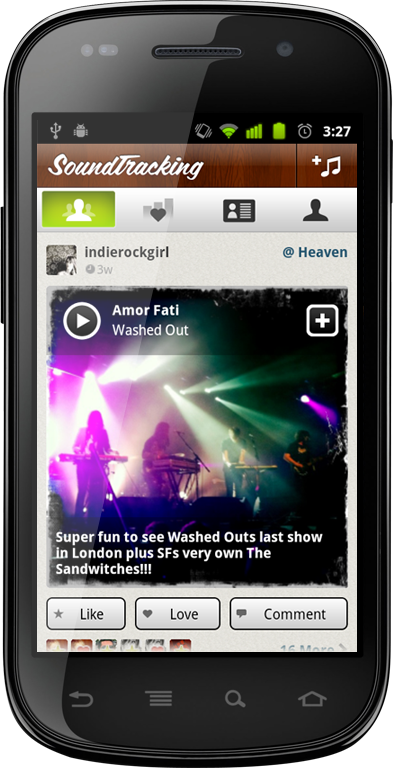
      Salut a tous! Launching today at the LeWeb 2011 conference in Paris is the long-awaited SoundTracking Android app. What makes this app special is that goes above and beyond theSoundTracking iPhone app — taking full advantage of Android capabilities in order to integrate popular music services Spotify and Rdio (for users of Spotify and Rdio). Which means, yes, you can now listen to full songs on SoundTracking instead just of 30 second iTunes snippets.
      Hallelujah. 
      The SoundTracking app itself is visually stunning, and frictionless; Because of the back button on Android, you no longer have to manually switch between apps if you want to post or listen to a song. SoundTracking founder Steve Jang tells me that Android was his number one user request. At number two? Spotify integration.
      In order to use the feature, users can hit the plus button in the app’s right hand corner for the “View in Spotify/Rdio” option. SoundTracking Android also senses when you’re listening to music in any music app from Google Music onwards and lets you send that song to SoundTracking, in another key difference from the iPhone app.
      These integrations are a big step for SoundTracking, which previously only offered the streaming of 30-second song snippets through iTunes, a fact which annoyed some users (myself included). They also expand SoundTracking’s affiliate revenue capabilities beyond iTunes referrals and into affiliate fees for Rdio.
      “We don’t want to decide what music consumption service they should use. We would like to be able to offer a choice,” Jang says. “If users end up liking something they discover through this collective music timeline, they should be able to have a seamless user experience to play it or add it to a playlist.”
      Jang says that eventually he’ll consider adding Spotify and Rdio integration to the iPhone version of the app if users show that those features are priorities, which they inevitably will, “The key to all of this is to make it easy and fun for users to post a highly contextual music moment, but also to take what they’ve discovered and play it/playlist it/own it in their music service of choice.”
      A product of Schematic Labs, SoundTracking recently announced a one million user milestone and $4.75 million in funding from Accel PartnersTrue Ventures and Softbank Capital. You can download SoundTracking for free in the Android market by searching “SoundTracking.” And watch a video of MG Siegler interviewing Jang about his grander vision for the service, below.

      Test-drive Windows Phone 7 : right on your Android phone or iPhone

      Thursday, December 1, 2011 0 comments

      Admit it: you're curious about Windows Phone 7. It's impossible to look at those sexy screenshots and not be.

      Of course, short of driving to your local cell phone emporium and standing there like a dweeb, there's no easy way to test-drive the OS. (It's not like anyone you know has a Windows Phone. Am I right?)

      As it happens, you can test-drive Windows Phone 7, and you can do it right on your Android phone or iPhone. For reals! Microsoft just introduced an interactive, browser-based Windows Phone 7 demo, one that gives you both the look and flavor of their please-won't-somebody-buy-it mobile operating system.

      If you're reading this on your phone, just tap the link in the previous paragraph. Otherwise, point your mobile browser to http://aka.ms/wpdemo.

      What you'll see next is an HTML5-powered page that shows you the Windows Phone 7 home screen (in all its photo-flipping glory) and lets you try all the main features: Phone, People, Messaging, Outlook, Family, and so on.

      Tapping any one of these tools leads you through a semi-guided demo, one that allows you to scroll screens and flip pages along the way. If you tap where the glowing swipe and/or tap indicators tell you, you'll eventually get to the "end" of that particular demo, with the option of starting over. (On my iPhone, I discovered I could also tap Safari's Back button to return to the Windows Phone home screen.)

      Truth be told, this was my first exposure to Windows Phone 7--and I liked it. The interface is just lovely, a monumental improvement over the train wreck that was Windows Mobile. There's a logic and elegance to it that, quite frankly, is lacking in both Android and iOS. I'm not saying I'd abandon my iPhone for it, only that I could see myself using and enjoying a Windows Phone.

      In other words, mission accomplished, Microsoft. You gave me a little hands-on time with your redheaded stepchild of a mobile OS, and got me thinking about adoption.

      What do you think of the demo? Cool? Meh? Something in between?

      FlyScreen Launches An iOS 5-Like Lockscreen API For Android -

      Friday, November 25, 2011 0 comments


      I know, I know. Apple totally stole its new Notifications Center for iOS 5 from Android. But let’s be honest, they did a pretty good job with it. (Except for those impossibly small “X” buttons, that is.) As someone who switches between both platforms, one thing I really like about iOS 5′s Notification Center is that it’s available from the phone’s lockscreen, too. On Android, you typically have to unlock your phone in order to view your notifications.
      Well, until now. Thanks to app maker FlyScreen and its brand-new “SuperFly API,” Android users may soon get their own lockscreen notifications, too.
      The API is just launching today, with messaging app Kik as the first API partner. The company is also taking sign-ups from other interested app developers via a form on the SuperFly homepage. Further down the road, the API will be publicly released so all Android apps can integrate with the service through what CEO Itamar Weisbrod says is just 5 lines of code.
      At first, these SuperFly notifications will be just an icon and text, as they are by default on iOS 5 and Android, but the company is working towards making them richer and more interactive in the future. When it goes live, the notifications lockscreen will be a part of the redesigned FlyScreen app for Android. FlyScreen updates, missed calls, SMS messages and email previews will be supported, too.
      While the I love the idea of a better, customizable lockscreen for Android users, the challenge will be getting Android app makers to sign up. FlyScreen will need to do more than just offer a public API – it will need to actively court partnerships to make this thing a success. However, it sounds like the company is doing just that. Weisbrod says there are “more big apps to come soon” and they already have some “big ones” in testing now.
      The new notifications section is already live in FlyScreen’s app in the Android Market, but Kik’s integration won’t arrive for a week or two. And as new developers sign up to use the SuperFly API, they’ll be added right away, making the app gradually more useful. If you’re interested in testing the new FlyScreen, you can grab it here from the Android Market.

      Top 10 Android Apps -

      Thursday, November 24, 2011 0 comments

      Android's been around for more than a year, and in that time developers have whipped up some great apps. Whether you're a new Android owner or a pro looking for new tools, these 10 great and free apps belong in your arsenal.
      Photo by lwallenstein.
      We're going to skip right over the apps that are just so common, universal, and well replicated on the iPhone or other mobile platforms that a user with a need will probably hunt them down—Facebook, Yelp, Evernote, Remember the Milk, and endless Twitter clients, widgets, and apps. We've also skipped over Google's own neat apps, like Google Voice, Navigation, and Goggles, that are (or will be) included standard on new Android phones. Instead, we're aiming to shine a little light on apps that quietly offer excellent functionality for those who download them.
      Update: I moved TasKiller Free up to a lower ranking, and modified its entry description a bit, after some further research, spurred by some Andro-savvy comments and emails.

      10. Layar

      In some ways, this is a vote for the potential of Layar as much as the practical application. Walking around with your phone and seeing Wikipedia subjects, apartments for sale, and what Twitter users have raved about through your phone is a pretty neat thing, and potentially helpful when you're looking for things to do in a new city. But as Layar continues to add new layers, and as camera and mobile processing power continue to improve, Layar could become a lot more interesting than it already is. One thing worth mentioning is that if you don't like the 3-D camera view, or like the looks of yourself while using it, Layar can just show you points of interest on a Google-type map. Either way you use it, it's an intriguing look at what's happening just around the corner. 

      9. Listen

      Until the latest upgrade, we couldn't have really called Listen a king among podcast apps—it had a few irksome bugs, one of them being the loss of episodes and, sometimes, subscriptions. Now, however, Google's own app does a great job not only of finding audio content, but it exports your subscriptions to be managed in Google Reader, ensuring a full feed backup and easier retrieval of past episodes you want to head back and hear. If you need more fine-grained podcast control, try ACast, but Listen will work for most. 

      8. AnyCut

      You can drop a lot of neat things on your Android home screen, but you can't quite get one-click access to everything in your phone's settings and extras. AnyCut doesn't have a great interface, and it might take some trial and error before you get to exactly what you're looking for. Soon enough, though, you'll have access to the deepest guts of your settings, so switching 3G on and off, enabling location services, and other tricks are easy to pull off. 

      7. Secrets

      There's no browser syncing on the Android—yet (c'mon, Mozilla, get on that Firefox Mobile!). In the meantime, there's Secrets, a secure, KeePass-compatible, master-password-locked vault for all your passwords. It's not that hard to export your passwords from your desktop or laptop onto your SD card, and with full-text search finally implemented, Secrets is a lot more convenient for those oh-shoot-what's-that-username-again moments. 

      6. TasKiller Free

      The downside to Android's multi-tasking is that sometimes, some apps can become unexpectedly become memory or bandwidth hogs, or bring your phone down with them when they crash. Few apps provide a direct, easy "Quit" option, though, and sometimes you can't get to the app to close it. Enter TasKiller, a free app-killing utility that works from its standard icon, or as one of a number of widgets you can add to your home screen for one-click system rescuing. The free version serves up ads and lacks a few advanced features, but generally serves the needs of anyone who's sick of needing to actually reset their phone just to clear up space for, you know, phone calls and such. Note: This app should be used as more of a last resort than regular maintenance tool—killing processes and apps willy-nilly can turn off alarms, kill background syncing, and have other unintended consequences.

      5. SlideScreen

      You use your Android smartphone differently than your desktop computer. You don't work with files and shortcuts, so much as you check in on the streams of data you care about—email, text messages, Facebook and Twitter, chat, and the like. SlideScreen replaces, or just augments, if you'd like, your phone's home screen, creating row after row of messages and feeds. Slide the center info bar up and down to look at more or less of your items, swipe to the right to dismiss items as read, and revel in having all your data on hand at once. SlideScreen also replaces the standard application tray, giving you 8 slots to put your most frequently accessed apps, and tucking all the others into a rolling deck below. It's a total makeover for your phone, in other words—one that might just make you fall in love all over again with the concept of mobile data. 

      4. Shopper

      Okay, at first we were pretty skeptical of Google's Shopper app, since it seemed like just a mashup of Google's own Goggles and barcode-smart apps likes ShopSavvy. Then we actually used Shopper, and were amazed at both how accurately it picked up both barcodes and simple cover shots, and at how very fast it worked. Turns out, according to one developer who appeared on This Week in Google, Shopper is actually uploading image data to Google's servers as it captures it, and decodes barcodes right on the phone. Speed for speed's sake is nice, sure, but it's pretty nice not to have to stand in front of a book display for a whole two minutes, waving your phone around a bunch of books you're trying to competitively price. Shopper answers the "Can I buy this cheaper" question, and answers it quickly.

      3. PDANet

      PDANet is the easiest way to use your phone's cellular net connection as a makeshift internet access point, for those hard-up situations when you just need to get online somehow, anyhow. The free version always offers basic internet access, but restricts secure site connections after a trial period. The paid version isn't cheap ($30), but it is the easiest of the three ways we know how to tether an Android phone. For the cost of nothing, we'll take some basic web site browsing—because, hey, can't you get to Gmail on your phone if you really need it? 

      2. WaveSecure

      This one's only free until March 31, so be sure to jump on it if you think there's even a remote chance you'll want some killer security tools available to you. WaveSecure not only backs up your contacts, SMS messages, photos and videos, and other files to the developer's cloud for later restoring if your phone gets lost, but can lock down a phone when you're stashing it for a while, locate a phone with GPS or text message triangulation (seriously), and, as a final option, pull off a total and complete remote wipe if you fear all is lost. Powerful peace of mind, especially for the price. 

      1. ASTRO File Manager

      This is one of those apps you hope gets some attention, if only to be bought by Google or otherwise integrated into the basic phone software. ASTRO File Manager does a great job of letting you navigate files on your SD card and accessible internal memory, sure, but it also has its own built-in task killer, backs up applications, can send files as email attachments (not all that easy or intuitive from the mail client, for some reason), and much more. It's the Leatherman of Android utilities, and a must-have on any serious geek's phone.


      To each their own, of course, but we'd love to hear what Android apps you consider crucial to your own phone in the comments. We tend toward free, but if you've found a cheap app that's worth a few bucks, our Android-loving readers, and developers, would likely be glad for the referral.

       
      CrackleTech © 2011 | Designed by WetCanvas Inc.